InvoicePilot

Features

For every item: how much came in, how much went out, and what remains.

InvoicePilot brings purchase invoices and sales invoices into one business view. It organizes quantity balances, source records and internal issuing plans from real invoice line items, so routine reconciliation no longer means searching through Excel files again and again.

  • For Mainland China tax invoices only.
  • Local desktop application.
  • Application language: Simplified Chinese
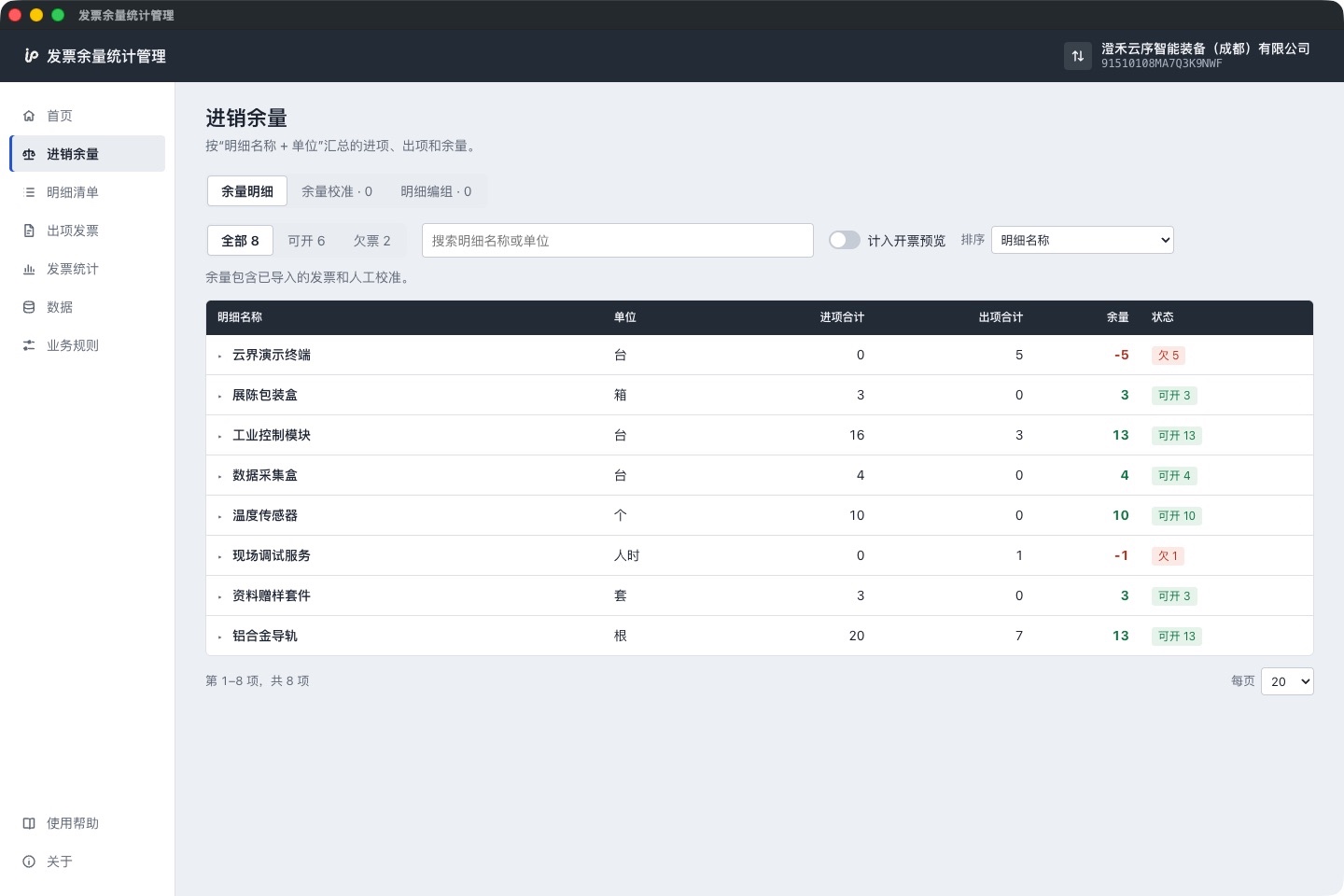
InvoicePilot balance view: purchase totals, sales totals and balances by line-item name and unit, with Available and Shortfall status tags View larger
Tell available quantities from shortfalls at a glance: positive balances are available, negative balances are shortfalls.

Screenshots of the InvoicePilot desktop application. All sample data is fictitious.

Workspace

See the balance clearly before planning any invoice.

The tax system can export invoice records, but it will not tell you how much of a given line item is still available for internal invoicing plans. InvoicePilot totals valid purchases and real sales by “line-item name + unit”, and shows available balances and shortfalls separately.

Items with different units are never merged on their own, and quantity-based and non-quantity line items follow different paths.

  • Available
  • Shortfall
  • Last data update
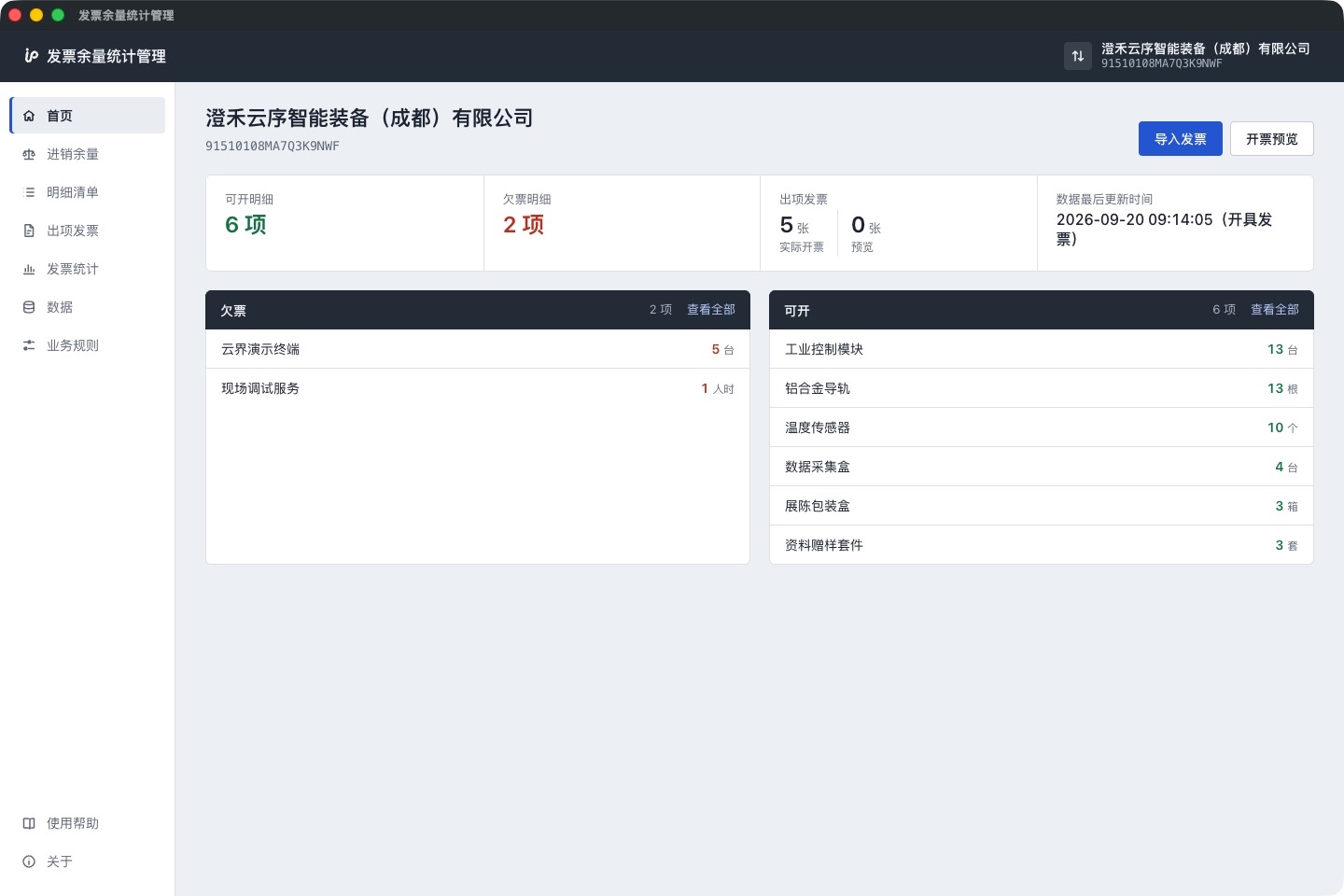
InvoicePilot home workspace: available and shortfall summary for the current company, real issued invoices and the data update time View larger
Open the application and start from the current company’s available and shortfall summary.

Source Traceability

From one number back to every source invoice.

After spotting a balance, expand it to see supplier purchase invoices, real sales invoices issued to customers, and the related line items. Use it for today’s reconciliation, or to trace where a piece of business came in and whom it was later invoiced to.

Records actually associated with a source are shown separately from balances that are only totalled by name and unit; a total does not mean invoice-by-invoice tracing has been completed automatically.

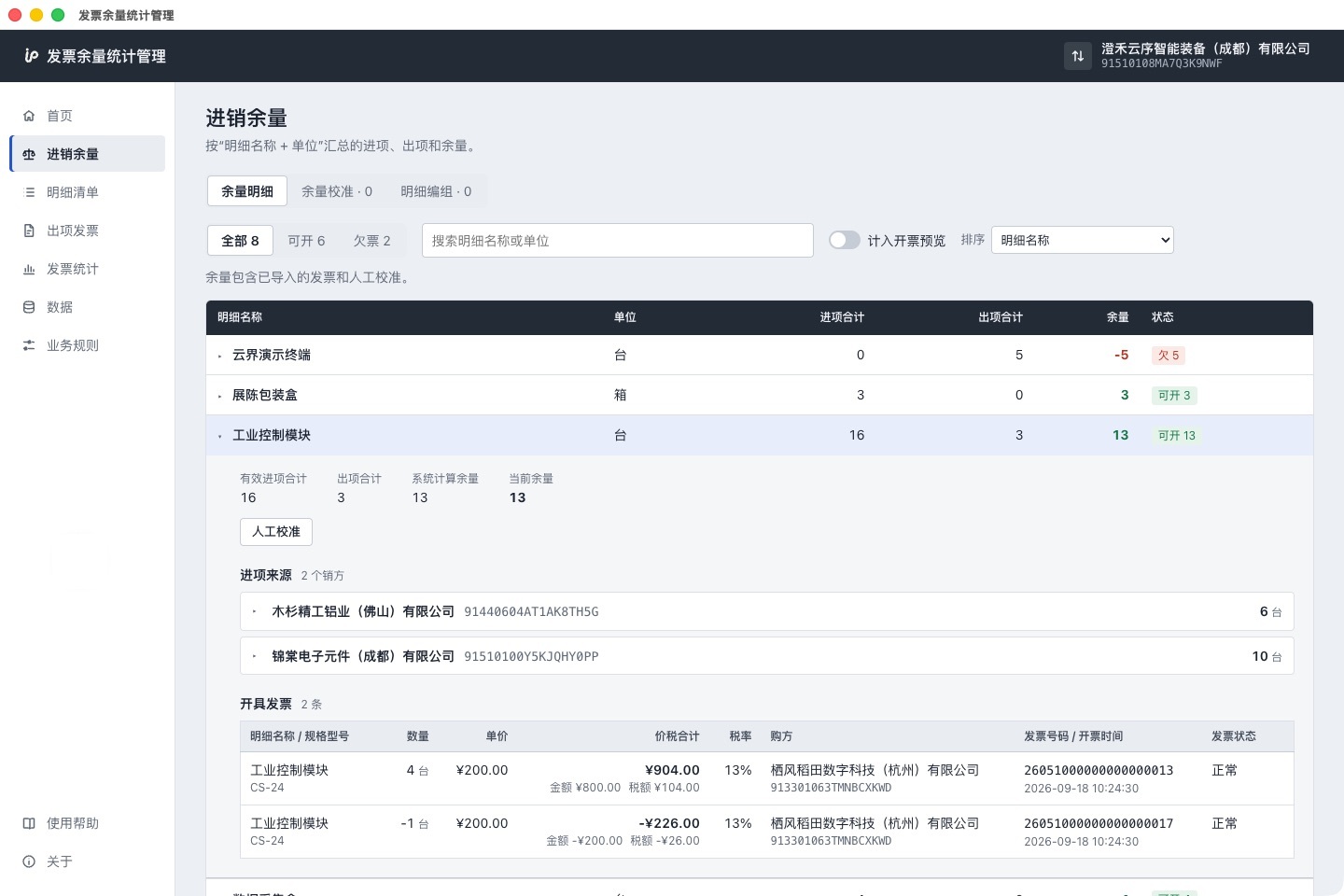
Expanded sources for an industrial control module: purchases from two suppliers with valid quantities, two sales invoices and one negative return View larger
Expand an item to see purchase sources and real sales invoices. Sample data is fictitious.

Line-item Ledger

Invoice data is more than two Excel files.

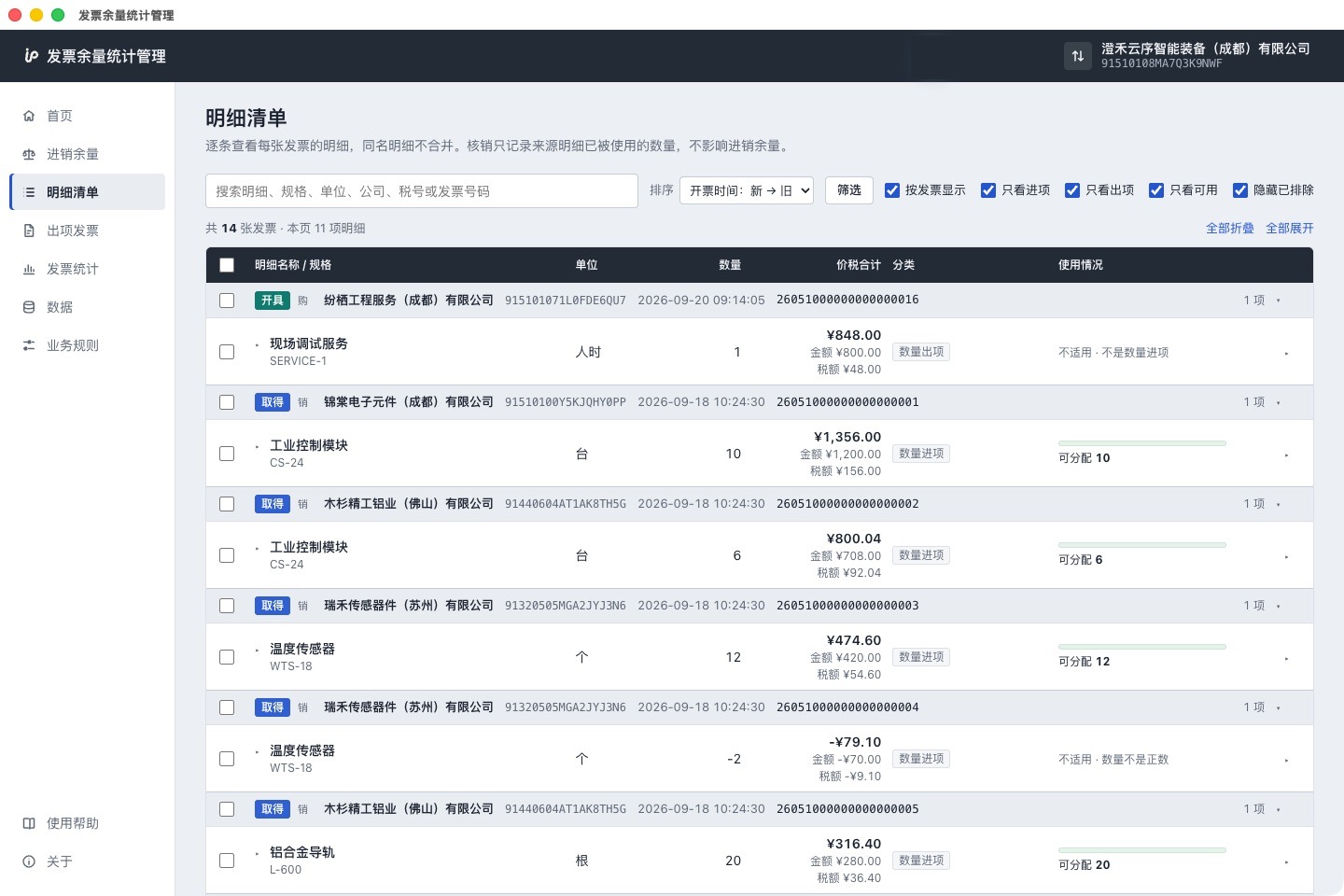
Browse actual data by invoice or line by line, and search by date, name, supplier or customer, invoice number and more. For quantity-based purchase and sales items you can see what is allocatable and how it has been used; non-quantity items such as service fees keep their line-item facts and are not forced into quantity balances.

Line-item ledger: received or issued, quantity-based and non-quantity items, unit price, tax and source usage for each invoice line View larger
An accounting view for every invoice and every line item.

Monthly Statistics

Monthly purchase and sales statistics

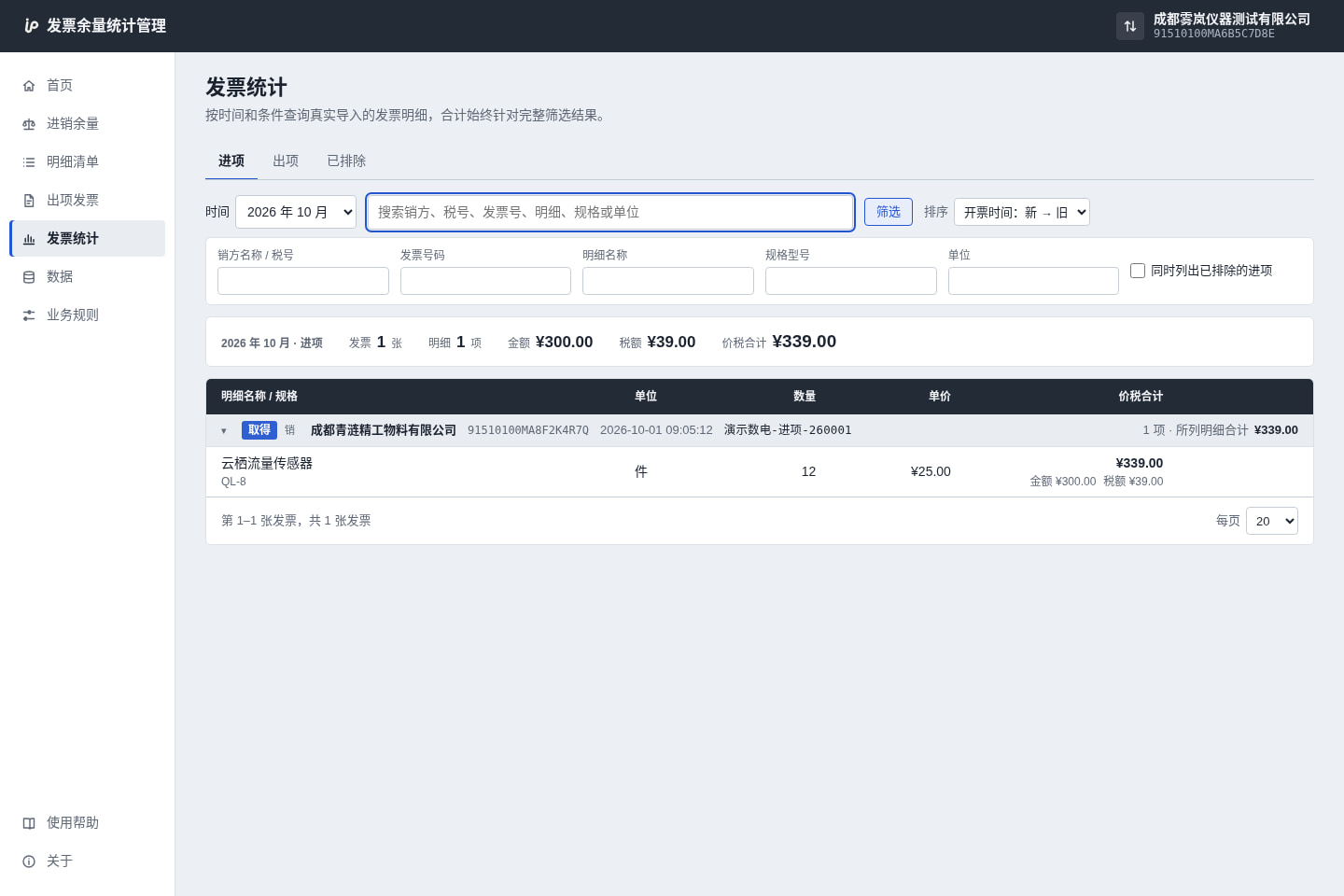
Filter by month and view the matching invoice line items and amount totals.

This is an internal business query, not tax-filing statistics.

Invoice statistics: purchases by month, with supplier, invoice number and line-item filters and the filtered amount total View larger
Look up invoice records by month.

Source Association

Match real sales invoices with their purchase sources.

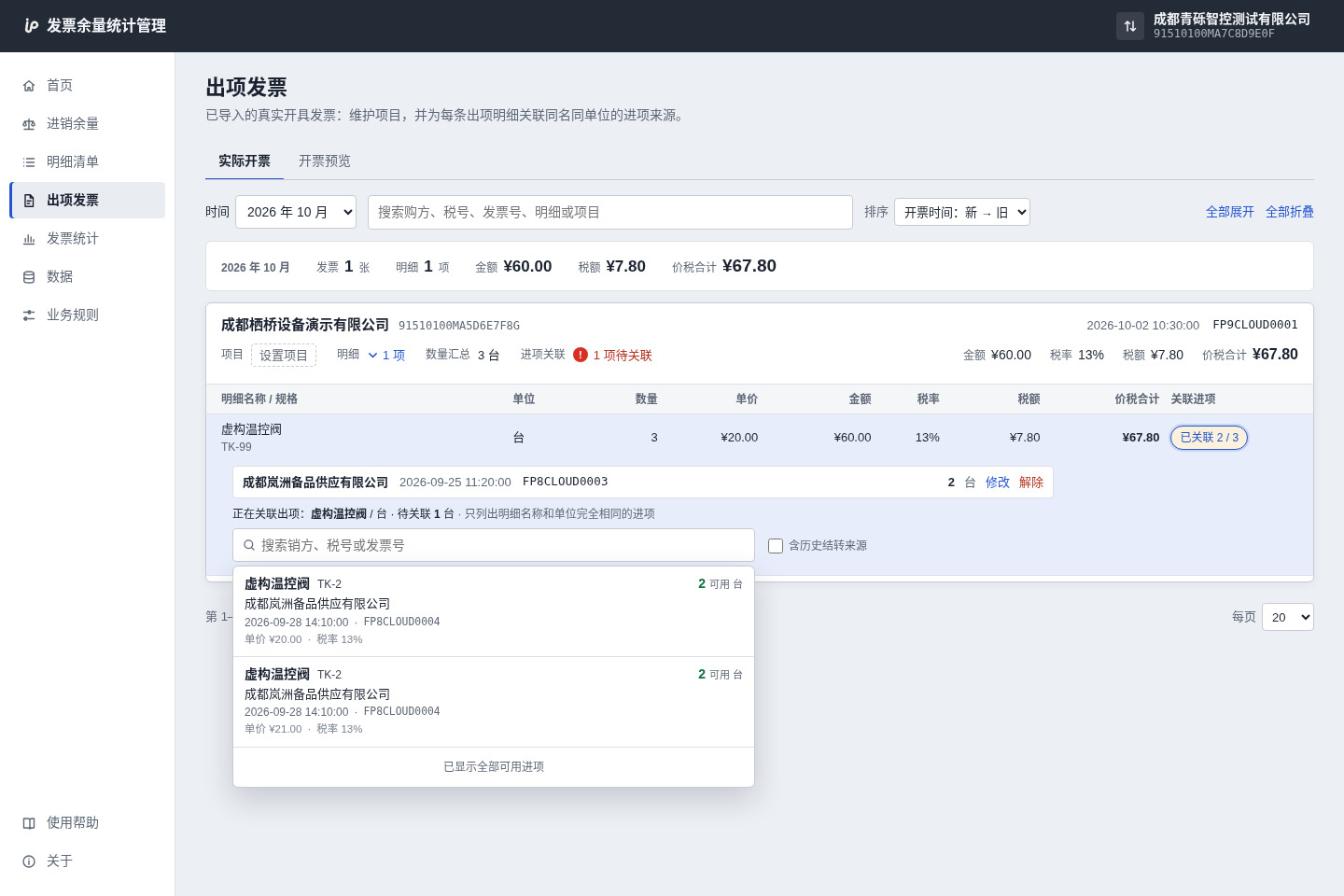
For imported sales invoices, you can maintain project ownership and, among valid candidate sources with the same name and unit, record the actual correspondence and quantity. Associated quantities and quantities still awaiting association are shown separately for later review.

Association is not an automatic tax write-off, and it does not change the original invoice records held by the tax authority.

Source association for a sales invoice: 2 of 3 units associated, 1 awaiting association, with supplier source candidates listed View larger
Real sales matched to purchase sources, with associated and pending quantities shown separately.

Internal Issuing Preview

Before issuing for real, preview it internally.

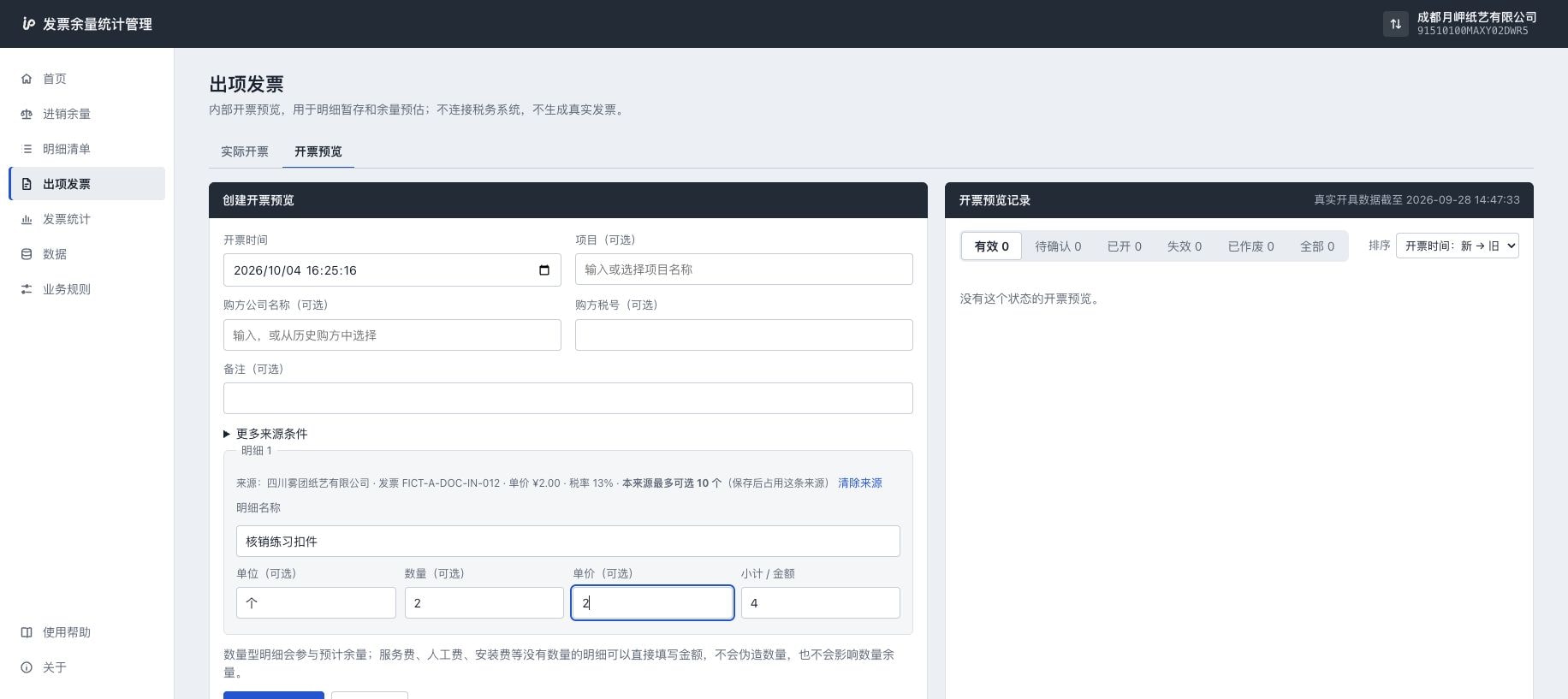
In an issuing preview, record the buyer, project, planned line items, quantities and unit prices, choose an existing purchase source where needed, and see the projected quantity in the balance view once the preview is included.

Previews serve internal planning and capacity reservation. They do not connect to the Electronic Tax Bureau, and no real invoice is generated, uploaded or issued from them.

Issuing preview ≠ official tax invoiceAn internal preview, not official tax invoice issuance.

Issuing preview: a purchase source selected, line-item name, unit, quantity and unit price entered, with subtotal and the quantity available from the source View larger
Preview internally before the real invoice is issued.

Manual Handling

Exceptions leave a record you can act on.

Data that does not fully match the rules can go into a manual-handling queue; for business expenses, sources or line items that should be excluded, the application provides manual classification and management.

Manual handling after import, keyword rules and price-change rules depend on the license edition; see the edition comparison.
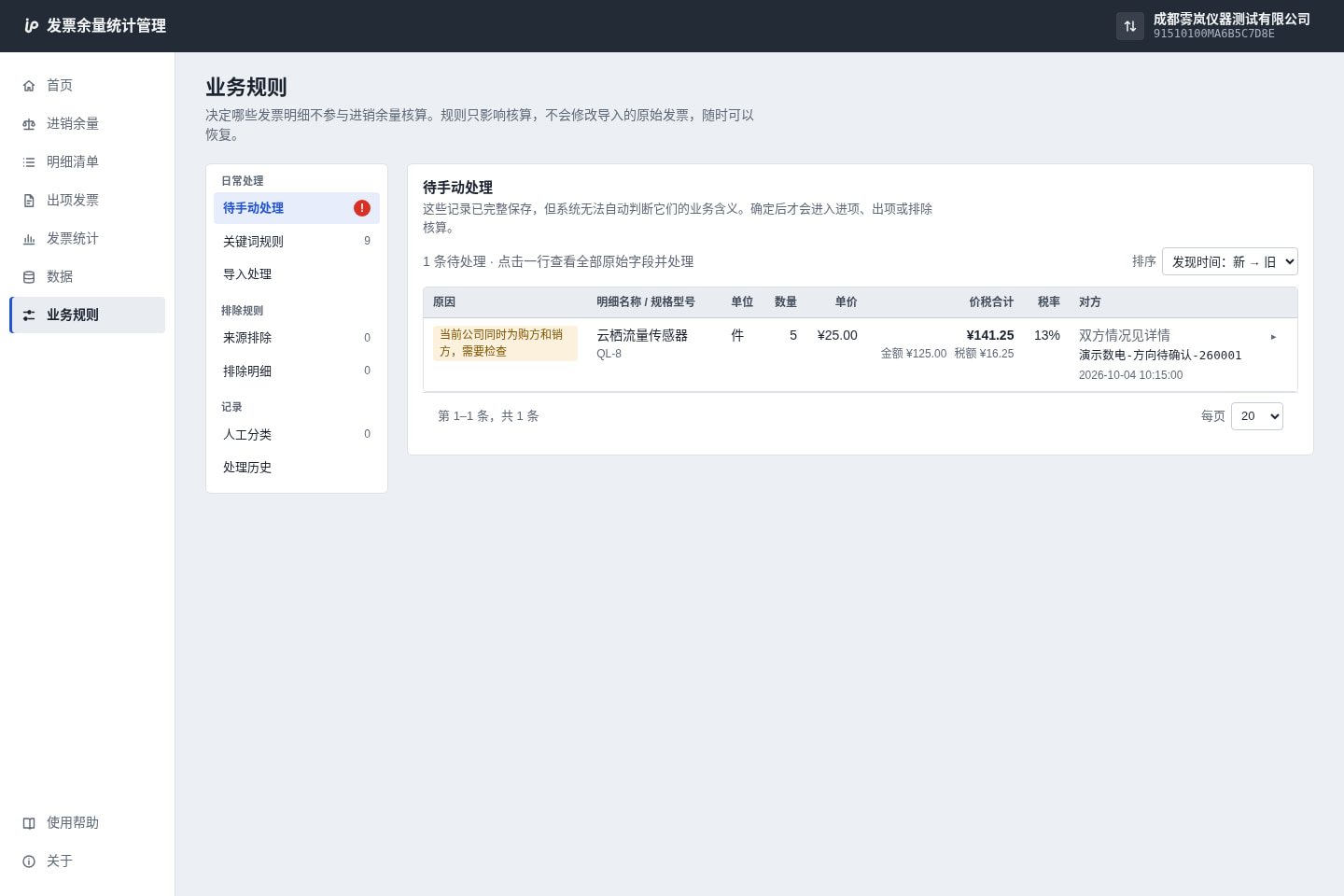
Manual-handling queue: pending records marked with an exclamation sign and their line items View larger
The few exceptions, handled in one place.

Backup & Migration

Data stays on your computer; backups stay in your hands.

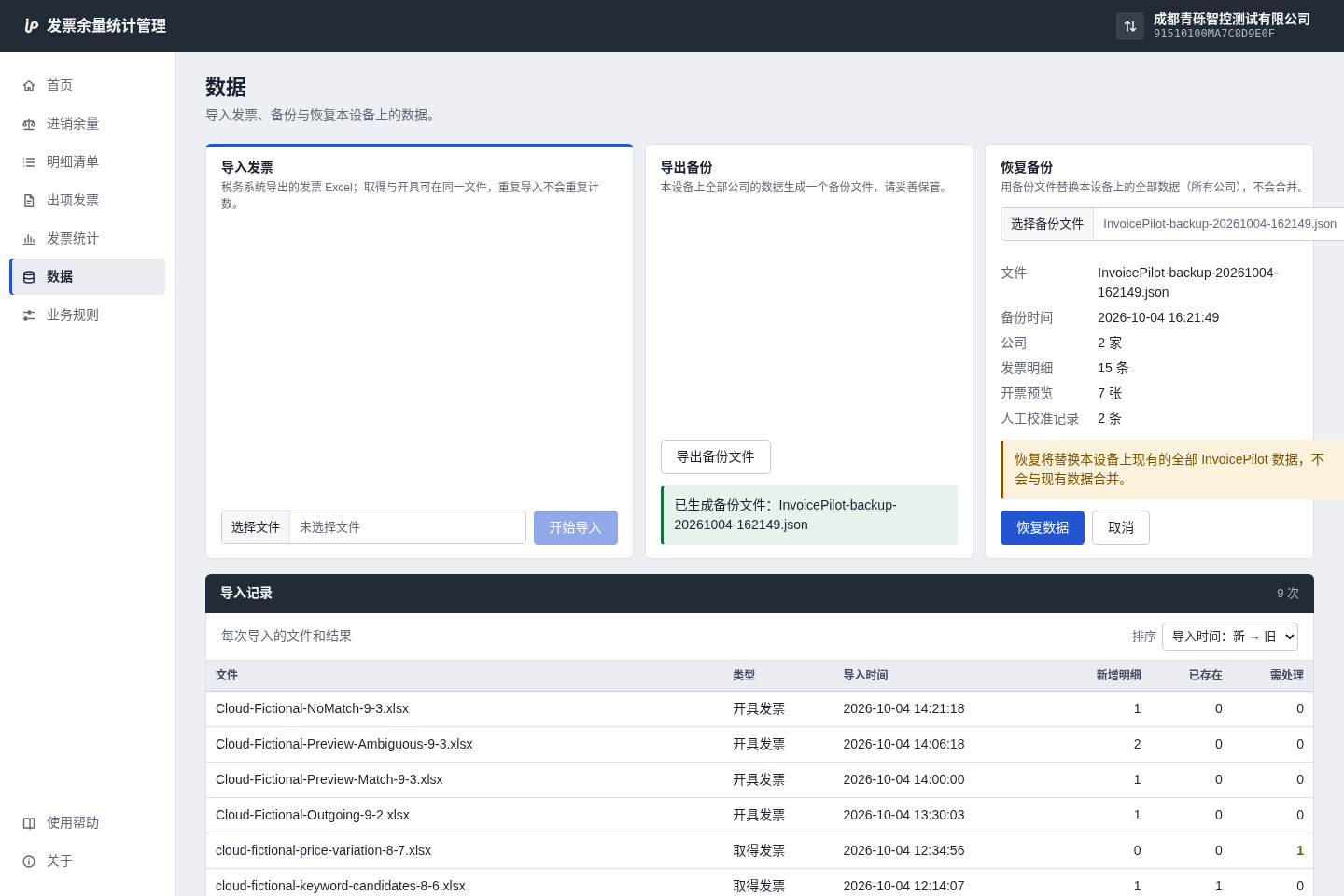
Each company has its own isolated workspace, and day-to-day invoice line items are stored on this computer. You can export a business backup and review its summary and impact before restoring. A restore may replace the business data on the target device, so read the prompt first.

Pro activation uses a license verification service; storing invoice data locally does not mean the application never connects to the network.

Backup summary before restoring: company and line-item counts, with a notice about the impact of the restore View larger
Managed locally, with a backup you can check; confirm the impact before restoring.

Getting Started

Start from the invoice lists you already have. No need to rebuild your workflow.

  1. Prepare the Excel files

    Export purchase and sales invoice lists from the applicable tax system, and check the company identity and file contents.

  2. Import and review

    Import both lists into the matching company, review current balances and records awaiting handling, and write off, calibrate or classify where needed.

  3. Use it for the next deal

    Query quantities by goods or service line item, review sources or projects, prepare internal issuing previews in advance, and back up regularly.

Detailed rules for repeated imports, exceptions and same-unit line items are documented in the in-app Help Center.

Boundaries

What to know before you start

Does it connect to the tax system to issue invoices?
No. Issuing previews are for internal planning only; actual invoices are still issued in the tax system you are legally required to use.
Do invoices have to be uploaded to the cloud?
Day-to-day business line items are maintained locally, and the product does not require uploading invoice line items to the website. Commercial license verification and software updates may use the network.
Can it be used in Hong Kong, Macao, Taiwan or overseas?
Current product rules and documentation target Mainland China tax invoice data; compatibility with other regions’ formats is not promised.
Which devices are supported?
Clients are available for macOS Apple Silicon, macOS Intel and Windows x64; the installers in the download channels are authoritative.

Start with the invoice data you already have.